
As technology evolves, especially during development, versioning issues can arise. As a developer, working on multiple projects at the same time is common, but switching between different versions of software can become difficult and frustrating.
In this article, we will focus on Node.js and the Node Version Manager - (NVM), a tool that allows users to quickly install Node versions directly from the CLI and easily switch between versions.
1. Node Version Manager (NVM)
Node Version Manager is a tool that helps manage Node versions and is a convenient way to install Node.
Think of it as npm or Yarn that manages Node packages, but instead of packages, NVM manages Node versions.
This means that it is possible to install multiple versions of Node on the client machine at the same time and switch between them as needed.
2. Why Node.js Developers Need NVM
Developers working with Node often encounter situations such as working with version 12 of Node while building a project as well as completing and archiving the project.
However, while everything works perfectly fine, a few months later, a feature may need to be updated and the development will run version 14 of Node.
It is not surprising to run npm install or yarn install to download Node modules.
In this example, errors related to deprecated packages will be displayed.
There are also cases where a higher version of Node can be used when a specific project requires an older version.
So, to avoid any headaches, let’s see how NVM works.
3. Install NVM
1
2
3
4
5
6
7
8
9
curl https://raw.githubusercontent.com/creationix/nvm/master/install.sh | bash
  source ~/.profile
  export NVM_DIR="$HOME/.nvm"
  [ -s "$NVM_DIR/nvm.sh" ] && \. "$NVM_DIR/nvm.sh"  # This loads nvm
  [ -s "$NVM_DIR/bash_completion" ] && \. "$NVM_DIR/bash_completion"  # This loads nvm bash_completion
  nvm install node
  nvm install 18
  nvm use 18
  npm i -g yarn
4. Show a list of Node.js versions
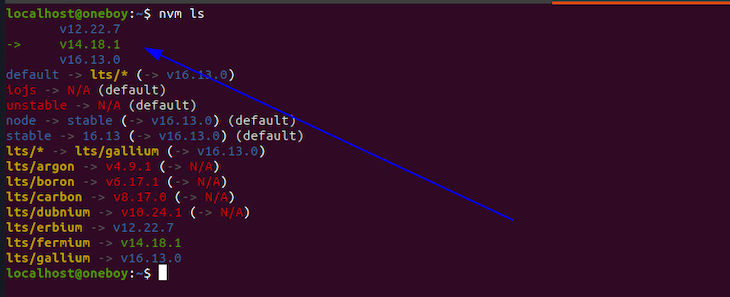
You can now see all the versions downloaded so far;
There are currently three versions of Node installed using NVM.
To see the full list, run the following command
1
nvm ls
The list then appears.
5. Switching between Node.js versions
The best feature of NVM is the ability to easily switch between different Node versions.
Suppose you have to use version 18.13.0 and then switch to 12.22.7 just run nvm use 12.22.7 or nvm use 16.13.0 to easily switch to either version.
1
2
nvm use 18
==> Now using node v18.13.0 (npm v10.1.0)
6. Remove Node.js Version
Usually, a specific Node version is not needed for the projects you are working on.
With NVM, it is easy to remove unnecessary versions.
To remove a version, simply run the following command
1
nvm uninstall <the version number>
It should be noted that each installation is independent, meaning that common packages on previous installations will not be available on the new installation.
7. Include
NVM is a convenient way to install and manage different versions of Node instead of installing directly, which limits the use of only one version, providing flexibility.
Comments powered by Disqus.